> ## Documentation Index
> Fetch the complete documentation index at: https://v1-learn.neoartd.my.id/llms.txt
> Use this file to discover all available pages before exploring further.
# Basics and Printing
> 9 assignments
## 0. Installing the Java Development Kit (JDK) - [Link](https://programmingbydoing.com/a/jdk-install.html)
First, you need the Java Development Kit (JDK) from Oracle. This is the actual compiler that your development environment (IDE) uses behind the scenes. Even if you already have Java installed, you probably still need this. (Most people only have the Java Runtime Environment (JRE) installed, which allows you to run existing Java programs but not compile new ones.)
Direct your web browser to [http://www.oracle.com/technetwork/java/javase/downloads/](http://www.oracle.com/technetwork/java/javase/downloads/)
Click the big "Java Download" button above where it says "Java Platform (JDK) 7u21", or any newer version if it's newer.
 You probably want the "Windows x86" version, which should be around 89 MB. Save this file in a location you can remember.
Once downloaded, run the executable. Follow the prompts to install the JDK. You'll need administrator access.
Next, you'll need to set an environment variable so that the command prompt can find the java compiler. You can find instructions for [editing the PATH](https://programmingbydoing.com/a/jdk-path.html) here.
Once you've added Java's bin folder to the PATH environment variable, you can try the [Compiler Check](https://programmingbydoing.com/a/compiler-check.html) assignment to make sure you've done it right.
Good news! The JDK is usually installed by default on Macs, so just open up "Terminal" and try the [Compiler Check](https://programmingbydoing.com/a/compiler-check.html) assignment to make sure.
On Debian-based distros (such as Ubuntu), you should be able to open up a terminal and install the JDK like so:
```bash theme={null}
login@localhost:~$ sudo apt-get install sun-java6-jdk
```
Then, just try the [Compiler Check](https://programmingbydoing.com/a/compiler-check.html) assignment to make sure everything worked.
Although you can create Java programs in any text editor and compile/run them from the command-line, most students are more comfortable with an Integrated Development Environment that handles these things for them.
There are several good ones, but the one I used to recommend no longer has a non-expiring free version, so I'm looking into [Geany](http://www.geany.org/) as a possible replacement.
## 1. Compiler Check - [Link](https://programmingbydoing.com/a/compiler-check.html)
This assignment is designed to make sure that the Java compiler (JDK) is correctly installed on your machine.
Open a terminal window or command prompt. (In Windows XP or newer, Start Menu | All Programs | Accessories | Command Prompt) Then type, in order, the commands below.
```bash theme={null}
Microsoft Windows [Version 6.1.7601]
Copyright (c) 2009 Microsoft Corporation. All rights reserved.
C:\>javac -version
```
You will see one of two things. If the JDK / Java compiler is correctly installed, you should see a version number like so:
```bash theme={null}
C:\>javac -version
javac 1.7.0_04
```
The exact version number doesn't matter, as long as it starts with "1.6" or higher.
However, if the JDK isn't installed, then you'll see an error like so:
```bash theme={null}
C:\>javac -version
'javac' is not recognized as an internal or external command, operable program or batch file.
```
If you're at home, I've got [instructions for installing the JDK](https://programmingbydoing.com/a/jdk-install.html) that you can read.
If you're using a computer inside Leander I.S.D., then you should be able to open the "LISD Applications" window and install "JDK 6u21" (or any newer version that's listed).
Once you've got the JDK installed, close the command prompt, open the comment prompt again, and try once more:
```bash theme={null}
Microsoft Windows [Version 6.1.7601]
Copyright (c) 2009 Microsoft Corporation. All rights reserved.
C:\>javac -version
javac 1.7.0_04
```
`Success!`
## 2. Compiling Practice - [Link](https://programmingbydoing.com/a/compiling-practice.html)
This assignment is designed to give you practice compiling and running a Java program. Start by saving the following file to your CompSci folder.
* [SineWave.java](https://programmingbydoing.com/a/examples/SineWave.java)
(You can save the file by right-clicking and choosing "Save Target As..." from the context menu.)
Then open up a command prompt.
Compile the program with the "javac" utility and then run the bytecode file through the "java" interpreter to execute it, as shown below.
```bash theme={null}
Microsoft Windows XP [Version 5.1.2600]
(C) Copyright 1985-2001 Microsoft Corp.
C:\>u:
U:\>cd My Documents
U:\My Documents>cd CompSci
U:\My Documents\CompSci>dir *.java
Volume in drive U is DATA01
Volume Serial Number is E012-345E
Directory of U:\My Documents\CompSci\
08/31/2011 12:40a 1,450 SineWave.java
1 File(s) 1,450 bytes
0 Dir(s) 53,887,197,184 bytes free
U:\My Documents\CompSci>javac SineWave.java
U:\My Documents\CompSci>dir SineWave.*
Volume in drive U is DATA01
Volume Serial Number is E012-345E
Directory of U:\My Documents\CompSci\
08/31/2011 12:45a 416 SineWave.class
08/31/2011 12:40a 1,450 SineWave.java
2 File(s) 1,866 bytes
0 Dir(s) 53,887,183,031 bytes free
U:\My Documents\CompSci>java SineWave
U:\My Documents\CompSci>
```
## 3. An Important Message - [Link](https://programmingbydoing.com/a/an-important-message.html)
This exercise will show you the detailed steps you must follow to create your first Java program.
Launch Notepad. (Start Menu | All Programs | Accessories | Notepad)
Then, type in the code listed below. Save your file as "FirstProg.java".
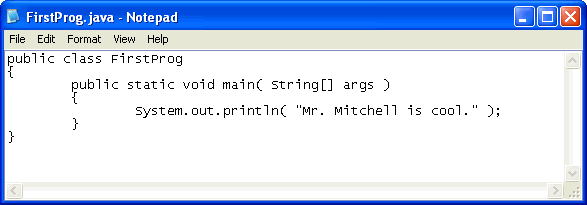
Keep Notepad open; you will need it again if there are errors.
Open a command prompt. (Start Menu | All Programs | Accessories | Command Prompt) Then type, in order, the commands below.
```bash theme={null}
Microsoft Windows XP [Version 5.1.2600]
(C) Copyright 1985-2001 Microsoft Corp.
C:\>u:
U:\>cd My Documents
U:\My Documents>cd CompSci
U:\My Documents\CompSci>javac FirstProg.java
U:\My Documents\CompSci>
```
If the command appears to do nothing, then it's working correctly! If it gives errors, though, then something is wrong. Look back at your code and fix any differences.
Once the compiling step (javac) completes with no errors, then your new program is ready to run!
```bash theme={null}
U:\My Documents\CompSci>java FirstProg
Mr. Mitchell is cool.
U:\My Documents\CompSci>
```
You did it! Now try changing the code so that the computer displays a different message.
## 4. A Good First Program - [Link](https://programmingbydoing.com/a/a-good-first-program.html)
Remember, you should have spent a good amount of time in the last assignment learning how to install a text editor, run the text editor, run a command prompt, and work with both of them. If you haven't done that then don't go on, you'll not have a good time. This is the only time I'll start an exercise with a warning that you should not skip or get ahead of yourself.
```java GoodFirstProgram.java theme={null}
public class GoodFirstProgram
{
public static void main( String[] args )
{
System.out.println( "Hello World!" );
System.out.println( "Hello Again" );
System.out.println( "I like typing this." );
System.out.println( "This is fun." );
System.out.println( "Yay! Printing." );
System.out.println( "I'd much rather you 'not'." );
System.out.println( "I \"said\" do not touch this." );
}
}
```
Take the above and type in into a single file named GoodFirstProgram.java. This is important as Java works best with files ending in .java.
Then, in a command prompt you *compile* the file by typing:
```bash theme={null}
U:\My Documents\CompSci\>javac GoodFirstProgram.java
U:\My Documents\CompSci\>
```
If you did it right then nothing should happen. The computer will just skip a single blank line and display a prompt again. If not, then you've done something wrong. No, the computer is not wrong.
Then, assuming there were no errors, you should run the program by typing:
```bash theme={null}
U:\My Documents\CompSci\>java GoodFirstProgram
```
If you did it right then you should see the same output I have below. If not, then you've done something wrong.
**Sample Output:**
```bash theme={null}
U:\My Documents\CompSci\>java GoodFirstProgram
Hello World!
Hello Again
I like typing this.
This is fun.
Yay! Printing.
I'd much rather you 'not'.
I "said" do not touch this.
U:\My Documents\CompSci\>
```
If your output is not exactly the same, then find out why and fix it. If you have an error it will look like this:
```bash theme={null}
U:\My Documents\CompSci\>javac GoodFirstProgram.java
GoodFirstProgram.java:6: ';' expected
System.out.println( "Hello Again" ):
^
1 error
U:\My Documents\CompSci\>
```
It's important you be able to read these since you'll be making many of these mistakes. Even I make many of these mistakes. Let's look at this line-by-line.
1. Here we ran our command in the terminal to compiler the GoodFirstProgram java file.
2. The Java compiler then tells us that the file GoodFirstProgram.java has an error on line 6.
3. In this case, the specific error is that a semicolon was expected (';' expected)
4. It then prints this line for us.
5. Then it puts a ^ (caret) character to point at where it thinks the problem is. Notice that there is a colon (':') at the end of the line instead of a semicolon (';')
6. Finally, it prints out the total number of errors.
Usually the specific error messages are very cryptic, but if you copy that text into a search engine you'll find someone else who's had that error and you can probably figure out how to fix it.
You will also have a few extra things you should do to make sure you understand each exercise. Assignments turned in *without* these things will not receive any points. For this exercise, try these things.
1. Make your program print another line of output.
> Answer: I added another line of output by adding `System.out.println("I am learning Java the Hard Way!");` to the program.
2. Put two slashes ('//') at the beginning of one of the println() statements. What did it do? Try to find out what these characters signify.
> Answer: I put two slashes at the beginning of the line `System.out.println("I like typing this.");`. This line of code is a comment. Comments are ignored by the compiler and are used to explain what the code does. Comments are very useful for explaining what the code does to other programmers or to yourself when you come back to the code later.
3. Make your program print only one of the lines.
> Answer: I made the program print only one line by commenting out all the other lines of code. I did this by adding two slashes at the beginning of each line of code except for the line `System.out.println("Hello World!");`.
From now on, I won't explain how each exercise works unless an exercise is different for some reason. Each time there is code you should put in a new file, the output you should see when you run the file in the command prompt, and extra things you should do.
## 5. Comments and Slashes - [Link](https://programmingbydoing.com/a/comments-and-slashes.html)
Comments are very important in your programs. They are used to tell you what something does in English, and they also are used to disable parts of your program if you need to remove them temporarily. Here's how you use comments in Java:
```java CommentsAndSlashes.java theme={null}
public class CommentsAndSlashes
{
public static void main( String[] args )
{
// A comment, this is so you can read your program later.
// Anything after the // is ignored by Java.
System.out.println( "I could have code like this." ); // and the comment after is ignored.
// You can also use a comment to "disable" or comment out a piece of code:
// System.out.println("This won't run.");
System.out.println( "This will run." );
}
}
```
From now on, I'm going to write code like this. It is important for you to understand that everything does not have to be literal. Your screen and program may visually look different, but what's important is the text you type into the file you're writing in your text editor. In fact, I could work with any text editor and the results would be the same.
**Sample Output:**
```bash theme={null}
I could have code like this.
This will run.
```
Assignments turned in *without* these things will not receive any points. For this exercise, try these things.
1. Were you right about what the two slashes ('//') signify? Answer in a comment at the top of the file (above the 'public class' line).
> Answer: Yes, I was right about what the two slashes signify. They are used to create comments in Java. Comments are ignored by the compiler and are used to explain what the code does. Comments are very useful for explaining what the code does to other programmers or to yourself when you come back to the code later.
2. Add another comment at the very top of the file (above your answer to the previous question) with your name and today's date.
> Answer: I added a comment at the very top of the file with my name and today's date.
## 6. A Letter to Yourself - [Link](https://programmingbydoing.com/a/letter-to-yourself.html)
Write a program that displays your name and address on the screen as if it were a letter. Your output should look something like that below.
**Sample Output:**
```bash theme={null}
U:\>java LetterToYourself
+---------------------------------------------------------+
| #### |
| #### |
| #### |
| |
| |
| Bill Gates |
| 1 Microsoft Way |
| Redmond, WA 98104 |
| |
+---------------------------------------------------------+
```
```java LetterToYourself.java theme={null}
public class LetterToYourself {
public static void main (String[] args) {
System.out.println("+---------------------------------------------------------+");
System.out.println("| #### |");
System.out.println("| #### |");
System.out.println("| #### |");
System.out.println("| |");
System.out.println("| |");
System.out.println("| Muqoffin |");
System.out.println("| Jln kebahagian |");
System.out.println("| Indonesia |");
System.out.println("| |");
System.out.println("+---------------------------------------------------------+");
}
}
```
***Output:***
```bash theme={null}
U:\>java LetterToYourself
+---------------------------------------------------------+
| #### |
| #### |
| #### |
| |
| |
| Muqoffin |
| Jln kebahagian |
| Indonesia |
| |
+---------------------------------------------------------+
```
## 7. Your Initials - [Link](https://programmingbydoing.com/a/your-initials.html)
Display your initials on the screen in block letters as shown.
**Sample Output:**
```bash theme={null}
For the name Jorge Balderama Perez...
JJJJJ BBBB PPPP
J B B P P
J B B P P
J BBBB PPPP
J J B B P
J J B B P
JJ BBBB P
```
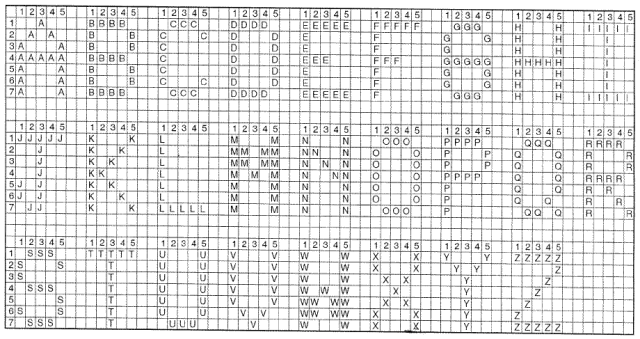
In case you have no idea how to make a certain letter, there are some suggestions below.
```java YourInitials.java theme={null}
public class YourInitials {
public static void main (String[] args) {
System.out.println("For the name Muhammad Muqoffin Nuha...\n\n");
System.out.println("M M M M N N");
System.out.println("MM MM MM MM NN N");
System.out.println("MM MM MM MM N N N");
System.out.println("M M M M M M N NN");
System.out.println("M M M M N N");
System.out.println("M M M M N N");
System.out.println("M M M M N N");
}
}
```
***Output:***
```bash theme={null}
U:\>java YourInitials
For the name Muhammad Muqoffin Nuha...
M M M M N N
MM MM MM MM NN N
MM MM MM MM N N N
M M M M M M N NN
M M M M N N
M M M M N N
M M M M N N
```
## 8. Numbers and Math - [Link](https://programmingbydoing.com/a/numbers-and-math.html)
Every programming language has some kind of way of doing numbers and math. Don't worry, programmers lie frequently about being math geniuses when they really aren't. If they were math geniuses, they would be doing math, not writing ads and social network games to steal people's money.
This exercise has lots of math symbols so let's name them right away so you know what they're called. As you type this one in, say the names. When saying them feels boring you can stop saying them. Here are the names:
* \+ plus
* \- minus
* / slash
* \* asterisk
* % percent
* \< less-than
* \> greater-than
* \<= less-than-or-equal
* \>= greater-than-or-equal
Notice how the operations are missing? After you type in the code for this exercise you are to go back and figure out what each of these does and complete the table. For example, + does addition.
**Sample Output:**
```bash theme={null}
I will now count my chickens:
Hens 30
Roosters 97
Now I will count the eggs:
7
Is it true that 3 + 2 < 5 - 7?
false
What is 3 + 2? 5
What is 5 - 7? -2
Oh, that's why it's false.
How about some more.
Is it greater? true
Is it greater or equal? true
Is it less or equal? false
```
```java NumbersAndMath.java theme={null}
public class NumbersAndMath
{
public static void main (String[] args) {
System.out.println("I will now count my chickens:");
// menjumlahkan
System.out.println("Hens " + (25.0 + 30.0 / 6.0));
System.out.println("Roosters " + (100.0 - 25.0 * 3.0 % 4.0));
System.out.println("Now I will count the eggs:");
System.out.println(3.0 + 2.0 + 1.0 - 5.0 + 4.0 % 2.0 - 1.0 / 4.0 + 6.0);
System.out.println("Is it true that 3 + 2 < 5 - 7?");
// cek apakah true or false ini disebut boolean
System.out.println(3.0 + 2.0 < 5.0 - 7.0);
System.out.println("What is 3 + 2? " + (3.0 + 2.0));
System.out.println("What is 5 - 7? " + (5.0 - 7.0));
System.out.println("Oh, that's why it's dalse.");
System.out.println("How about some more.");
// cek apakah true or false ini disebut boolean
System.out.println( "Is it greater? " + ( 5.0 > -2.0 ) );
System.out.println( "Is it greater or equal? " + ( 5.0 >= -2.0 ) );
System.out.println( "Is it less or equal? " + ( 5.0 <= -2.0 ) );
}
}
```
Assignments turned in *without* these things will not receive any points.
1. Above each line, use two slashes // to write a comment to yourself explaining what the line does.
> Answer: I added comments above each line of code to explain what the code does.
2. Notice the math seems "wrong"? There are no fractions, only whole numbers. Find out why by researching what a "floating point" number is.
> Answer: The math seems wrong because the numbers are integers. Integers are whole numbers and do not have a decimal point. To make the math more accurate, we can use floating-point numbers. Floating-point numbers are numbers that have a decimal point. They are used to represent real numbers and are more accurate than integers.
3. Rewrite NumbersAndMath.java to use floating point numbers so it's more accurate (hint: 20.0 is floating point).
> Answer: I rewrote the NumbersAndMath.java program to use floating-point numbers. I did this by changing the integers to floating-point numbers. For example, I changed `25` to `25.0` and `30` to `30.0`.
```java NumbersAndMath.java theme={null}
public class NumbersAndMath
{
public static void main( String[] args )
{
System.out.println( "I will now count my chickens:" );
System.out.println( "Hens " + ( 25.0 + 30.0 / 6.0 ) );
System.out.println( "Roosters " + ( 100.0 - 25.0 * 3.0 % 4.0 ) );
System.out.println( "Now I will count the eggs:" );
System.out.println( 3.0 + 2.0 + 1.0 - 5.0 + 4.0 % 2.0 - 1.0 / 4.0 + 6.0 );
System.out.println( "Is it true that 3 + 2 < 5 - 7?" );
System.out.println( 3.0 + 2.0 < 5.0 - 7.0 );
System.out.println( "What is 3 + 2? " + ( 3.0 + 2.0 ) );
System.out.println( "What is 5 - 7? " + ( 5.0 - 7.0 ) );
System.out.println( "Oh, that's why it's false." );
System.out.println( "How about some more." );
System.out.println( "Is it greater? " + ( 5.0 > -2.0 ) );
System.out.println( "Is it greater or equal? " + ( 5.0 >= -2.0 ) );
System.out.println( "Is it less or equal? " + ( 5.0 <= -2.0 ) );
}
}
```
You probably want the "Windows x86" version, which should be around 89 MB. Save this file in a location you can remember.
Once downloaded, run the executable. Follow the prompts to install the JDK. You'll need administrator access.
Next, you'll need to set an environment variable so that the command prompt can find the java compiler. You can find instructions for [editing the PATH](https://programmingbydoing.com/a/jdk-path.html) here.
Once you've added Java's bin folder to the PATH environment variable, you can try the [Compiler Check](https://programmingbydoing.com/a/compiler-check.html) assignment to make sure you've done it right.
Good news! The JDK is usually installed by default on Macs, so just open up "Terminal" and try the [Compiler Check](https://programmingbydoing.com/a/compiler-check.html) assignment to make sure.
On Debian-based distros (such as Ubuntu), you should be able to open up a terminal and install the JDK like so:
```bash theme={null}
login@localhost:~$ sudo apt-get install sun-java6-jdk
```
Then, just try the [Compiler Check](https://programmingbydoing.com/a/compiler-check.html) assignment to make sure everything worked.
Although you can create Java programs in any text editor and compile/run them from the command-line, most students are more comfortable with an Integrated Development Environment that handles these things for them.
There are several good ones, but the one I used to recommend no longer has a non-expiring free version, so I'm looking into [Geany](http://www.geany.org/) as a possible replacement.
## 1. Compiler Check - [Link](https://programmingbydoing.com/a/compiler-check.html)
This assignment is designed to make sure that the Java compiler (JDK) is correctly installed on your machine.
Open a terminal window or command prompt. (In Windows XP or newer, Start Menu | All Programs | Accessories | Command Prompt) Then type, in order, the commands below.
```bash theme={null}
Microsoft Windows [Version 6.1.7601]
Copyright (c) 2009 Microsoft Corporation. All rights reserved.
C:\>javac -version
```
You will see one of two things. If the JDK / Java compiler is correctly installed, you should see a version number like so:
```bash theme={null}
C:\>javac -version
javac 1.7.0_04
```
The exact version number doesn't matter, as long as it starts with "1.6" or higher.
However, if the JDK isn't installed, then you'll see an error like so:
```bash theme={null}
C:\>javac -version
'javac' is not recognized as an internal or external command, operable program or batch file.
```
If you're at home, I've got [instructions for installing the JDK](https://programmingbydoing.com/a/jdk-install.html) that you can read.
If you're using a computer inside Leander I.S.D., then you should be able to open the "LISD Applications" window and install "JDK 6u21" (or any newer version that's listed).
Once you've got the JDK installed, close the command prompt, open the comment prompt again, and try once more:
```bash theme={null}
Microsoft Windows [Version 6.1.7601]
Copyright (c) 2009 Microsoft Corporation. All rights reserved.
C:\>javac -version
javac 1.7.0_04
```
`Success!`
## 2. Compiling Practice - [Link](https://programmingbydoing.com/a/compiling-practice.html)
This assignment is designed to give you practice compiling and running a Java program. Start by saving the following file to your CompSci folder.
* [SineWave.java](https://programmingbydoing.com/a/examples/SineWave.java)
(You can save the file by right-clicking and choosing "Save Target As..." from the context menu.)
Then open up a command prompt.
Compile the program with the "javac" utility and then run the bytecode file through the "java" interpreter to execute it, as shown below.
```bash theme={null}
Microsoft Windows XP [Version 5.1.2600]
(C) Copyright 1985-2001 Microsoft Corp.
C:\>u:
U:\>cd My Documents
U:\My Documents>cd CompSci
U:\My Documents\CompSci>dir *.java
Volume in drive U is DATA01
Volume Serial Number is E012-345E
Directory of U:\My Documents\CompSci\
08/31/2011 12:40a 1,450 SineWave.java
1 File(s) 1,450 bytes
0 Dir(s) 53,887,197,184 bytes free
U:\My Documents\CompSci>javac SineWave.java
U:\My Documents\CompSci>dir SineWave.*
Volume in drive U is DATA01
Volume Serial Number is E012-345E
Directory of U:\My Documents\CompSci\
08/31/2011 12:45a 416 SineWave.class
08/31/2011 12:40a 1,450 SineWave.java
2 File(s) 1,866 bytes
0 Dir(s) 53,887,183,031 bytes free
U:\My Documents\CompSci>java SineWave
U:\My Documents\CompSci>
```
## 3. An Important Message - [Link](https://programmingbydoing.com/a/an-important-message.html)
This exercise will show you the detailed steps you must follow to create your first Java program.
Launch Notepad. (Start Menu | All Programs | Accessories | Notepad)
Then, type in the code listed below. Save your file as "FirstProg.java".

Keep Notepad open; you will need it again if there are errors.
Open a command prompt. (Start Menu | All Programs | Accessories | Command Prompt) Then type, in order, the commands below.
```bash theme={null}
Microsoft Windows XP [Version 5.1.2600]
(C) Copyright 1985-2001 Microsoft Corp.
C:\>u:
U:\>cd My Documents
U:\My Documents>cd CompSci
U:\My Documents\CompSci>javac FirstProg.java
U:\My Documents\CompSci>
```
If the command appears to do nothing, then it's working correctly! If it gives errors, though, then something is wrong. Look back at your code and fix any differences.
Once the compiling step (javac) completes with no errors, then your new program is ready to run!
```bash theme={null}
U:\My Documents\CompSci>java FirstProg
Mr. Mitchell is cool.
U:\My Documents\CompSci>
```
You did it! Now try changing the code so that the computer displays a different message.
## 4. A Good First Program - [Link](https://programmingbydoing.com/a/a-good-first-program.html)
Remember, you should have spent a good amount of time in the last assignment learning how to install a text editor, run the text editor, run a command prompt, and work with both of them. If you haven't done that then don't go on, you'll not have a good time. This is the only time I'll start an exercise with a warning that you should not skip or get ahead of yourself.
```java GoodFirstProgram.java theme={null}
public class GoodFirstProgram
{
public static void main( String[] args )
{
System.out.println( "Hello World!" );
System.out.println( "Hello Again" );
System.out.println( "I like typing this." );
System.out.println( "This is fun." );
System.out.println( "Yay! Printing." );
System.out.println( "I'd much rather you 'not'." );
System.out.println( "I \"said\" do not touch this." );
}
}
```
Take the above and type in into a single file named GoodFirstProgram.java. This is important as Java works best with files ending in .java.
Then, in a command prompt you *compile* the file by typing:
```bash theme={null}
U:\My Documents\CompSci\>javac GoodFirstProgram.java
U:\My Documents\CompSci\>
```
If you did it right then nothing should happen. The computer will just skip a single blank line and display a prompt again. If not, then you've done something wrong. No, the computer is not wrong.
Then, assuming there were no errors, you should run the program by typing:
```bash theme={null}
U:\My Documents\CompSci\>java GoodFirstProgram
```
If you did it right then you should see the same output I have below. If not, then you've done something wrong.
**Sample Output:**
```bash theme={null}
U:\My Documents\CompSci\>java GoodFirstProgram
Hello World!
Hello Again
I like typing this.
This is fun.
Yay! Printing.
I'd much rather you 'not'.
I "said" do not touch this.
U:\My Documents\CompSci\>
```
If your output is not exactly the same, then find out why and fix it. If you have an error it will look like this:
```bash theme={null}
U:\My Documents\CompSci\>javac GoodFirstProgram.java
GoodFirstProgram.java:6: ';' expected
System.out.println( "Hello Again" ):
^
1 error
U:\My Documents\CompSci\>
```
It's important you be able to read these since you'll be making many of these mistakes. Even I make many of these mistakes. Let's look at this line-by-line.
1. Here we ran our command in the terminal to compiler the GoodFirstProgram java file.
2. The Java compiler then tells us that the file GoodFirstProgram.java has an error on line 6.
3. In this case, the specific error is that a semicolon was expected (';' expected)
4. It then prints this line for us.
5. Then it puts a ^ (caret) character to point at where it thinks the problem is. Notice that there is a colon (':') at the end of the line instead of a semicolon (';')
6. Finally, it prints out the total number of errors.
Usually the specific error messages are very cryptic, but if you copy that text into a search engine you'll find someone else who's had that error and you can probably figure out how to fix it.
You will also have a few extra things you should do to make sure you understand each exercise. Assignments turned in *without* these things will not receive any points. For this exercise, try these things.
1. Make your program print another line of output.
> Answer: I added another line of output by adding `System.out.println("I am learning Java the Hard Way!");` to the program.
2. Put two slashes ('//') at the beginning of one of the println() statements. What did it do? Try to find out what these characters signify.
> Answer: I put two slashes at the beginning of the line `System.out.println("I like typing this.");`. This line of code is a comment. Comments are ignored by the compiler and are used to explain what the code does. Comments are very useful for explaining what the code does to other programmers or to yourself when you come back to the code later.
3. Make your program print only one of the lines.
> Answer: I made the program print only one line by commenting out all the other lines of code. I did this by adding two slashes at the beginning of each line of code except for the line `System.out.println("Hello World!");`.
From now on, I won't explain how each exercise works unless an exercise is different for some reason. Each time there is code you should put in a new file, the output you should see when you run the file in the command prompt, and extra things you should do.
## 5. Comments and Slashes - [Link](https://programmingbydoing.com/a/comments-and-slashes.html)
Comments are very important in your programs. They are used to tell you what something does in English, and they also are used to disable parts of your program if you need to remove them temporarily. Here's how you use comments in Java:
```java CommentsAndSlashes.java theme={null}
public class CommentsAndSlashes
{
public static void main( String[] args )
{
// A comment, this is so you can read your program later.
// Anything after the // is ignored by Java.
System.out.println( "I could have code like this." ); // and the comment after is ignored.
// You can also use a comment to "disable" or comment out a piece of code:
// System.out.println("This won't run.");
System.out.println( "This will run." );
}
}
```
From now on, I'm going to write code like this. It is important for you to understand that everything does not have to be literal. Your screen and program may visually look different, but what's important is the text you type into the file you're writing in your text editor. In fact, I could work with any text editor and the results would be the same.
**Sample Output:**
```bash theme={null}
I could have code like this.
This will run.
```
Assignments turned in *without* these things will not receive any points. For this exercise, try these things.
1. Were you right about what the two slashes ('//') signify? Answer in a comment at the top of the file (above the 'public class' line).
> Answer: Yes, I was right about what the two slashes signify. They are used to create comments in Java. Comments are ignored by the compiler and are used to explain what the code does. Comments are very useful for explaining what the code does to other programmers or to yourself when you come back to the code later.
2. Add another comment at the very top of the file (above your answer to the previous question) with your name and today's date.
> Answer: I added a comment at the very top of the file with my name and today's date.
## 6. A Letter to Yourself - [Link](https://programmingbydoing.com/a/letter-to-yourself.html)
Write a program that displays your name and address on the screen as if it were a letter. Your output should look something like that below.
**Sample Output:**
```bash theme={null}
U:\>java LetterToYourself
+---------------------------------------------------------+
| #### |
| #### |
| #### |
| |
| |
| Bill Gates |
| 1 Microsoft Way |
| Redmond, WA 98104 |
| |
+---------------------------------------------------------+
```
```java LetterToYourself.java theme={null}
public class LetterToYourself {
public static void main (String[] args) {
System.out.println("+---------------------------------------------------------+");
System.out.println("| #### |");
System.out.println("| #### |");
System.out.println("| #### |");
System.out.println("| |");
System.out.println("| |");
System.out.println("| Muqoffin |");
System.out.println("| Jln kebahagian |");
System.out.println("| Indonesia |");
System.out.println("| |");
System.out.println("+---------------------------------------------------------+");
}
}
```
***Output:***
```bash theme={null}
U:\>java LetterToYourself
+---------------------------------------------------------+
| #### |
| #### |
| #### |
| |
| |
| Muqoffin |
| Jln kebahagian |
| Indonesia |
| |
+---------------------------------------------------------+
```
## 7. Your Initials - [Link](https://programmingbydoing.com/a/your-initials.html)
Display your initials on the screen in block letters as shown.
**Sample Output:**
```bash theme={null}
For the name Jorge Balderama Perez...
JJJJJ BBBB PPPP
J B B P P
J B B P P
J BBBB PPPP
J J B B P
J J B B P
JJ BBBB P
```
In case you have no idea how to make a certain letter, there are some suggestions below.

```java YourInitials.java theme={null}
public class YourInitials {
public static void main (String[] args) {
System.out.println("For the name Muhammad Muqoffin Nuha...\n\n");
System.out.println("M M M M N N");
System.out.println("MM MM MM MM NN N");
System.out.println("MM MM MM MM N N N");
System.out.println("M M M M M M N NN");
System.out.println("M M M M N N");
System.out.println("M M M M N N");
System.out.println("M M M M N N");
}
}
```
***Output:***
```bash theme={null}
U:\>java YourInitials
For the name Muhammad Muqoffin Nuha...
M M M M N N
MM MM MM MM NN N
MM MM MM MM N N N
M M M M M M N NN
M M M M N N
M M M M N N
M M M M N N
```
## 8. Numbers and Math - [Link](https://programmingbydoing.com/a/numbers-and-math.html)
Every programming language has some kind of way of doing numbers and math. Don't worry, programmers lie frequently about being math geniuses when they really aren't. If they were math geniuses, they would be doing math, not writing ads and social network games to steal people's money.
This exercise has lots of math symbols so let's name them right away so you know what they're called. As you type this one in, say the names. When saying them feels boring you can stop saying them. Here are the names:
* \+ plus
* \- minus
* / slash
* \* asterisk
* % percent
* \< less-than
* \> greater-than
* \<= less-than-or-equal
* \>= greater-than-or-equal
Notice how the operations are missing? After you type in the code for this exercise you are to go back and figure out what each of these does and complete the table. For example, + does addition.
**Sample Output:**
```bash theme={null}
I will now count my chickens:
Hens 30
Roosters 97
Now I will count the eggs:
7
Is it true that 3 + 2 < 5 - 7?
false
What is 3 + 2? 5
What is 5 - 7? -2
Oh, that's why it's false.
How about some more.
Is it greater? true
Is it greater or equal? true
Is it less or equal? false
```
```java NumbersAndMath.java theme={null}
public class NumbersAndMath
{
public static void main (String[] args) {
System.out.println("I will now count my chickens:");
// menjumlahkan
System.out.println("Hens " + (25.0 + 30.0 / 6.0));
System.out.println("Roosters " + (100.0 - 25.0 * 3.0 % 4.0));
System.out.println("Now I will count the eggs:");
System.out.println(3.0 + 2.0 + 1.0 - 5.0 + 4.0 % 2.0 - 1.0 / 4.0 + 6.0);
System.out.println("Is it true that 3 + 2 < 5 - 7?");
// cek apakah true or false ini disebut boolean
System.out.println(3.0 + 2.0 < 5.0 - 7.0);
System.out.println("What is 3 + 2? " + (3.0 + 2.0));
System.out.println("What is 5 - 7? " + (5.0 - 7.0));
System.out.println("Oh, that's why it's dalse.");
System.out.println("How about some more.");
// cek apakah true or false ini disebut boolean
System.out.println( "Is it greater? " + ( 5.0 > -2.0 ) );
System.out.println( "Is it greater or equal? " + ( 5.0 >= -2.0 ) );
System.out.println( "Is it less or equal? " + ( 5.0 <= -2.0 ) );
}
}
```
Assignments turned in *without* these things will not receive any points.
1. Above each line, use two slashes // to write a comment to yourself explaining what the line does.
> Answer: I added comments above each line of code to explain what the code does.
2. Notice the math seems "wrong"? There are no fractions, only whole numbers. Find out why by researching what a "floating point" number is.
> Answer: The math seems wrong because the numbers are integers. Integers are whole numbers and do not have a decimal point. To make the math more accurate, we can use floating-point numbers. Floating-point numbers are numbers that have a decimal point. They are used to represent real numbers and are more accurate than integers.
3. Rewrite NumbersAndMath.java to use floating point numbers so it's more accurate (hint: 20.0 is floating point).
> Answer: I rewrote the NumbersAndMath.java program to use floating-point numbers. I did this by changing the integers to floating-point numbers. For example, I changed `25` to `25.0` and `30` to `30.0`.
```java NumbersAndMath.java theme={null}
public class NumbersAndMath
{
public static void main( String[] args )
{
System.out.println( "I will now count my chickens:" );
System.out.println( "Hens " + ( 25.0 + 30.0 / 6.0 ) );
System.out.println( "Roosters " + ( 100.0 - 25.0 * 3.0 % 4.0 ) );
System.out.println( "Now I will count the eggs:" );
System.out.println( 3.0 + 2.0 + 1.0 - 5.0 + 4.0 % 2.0 - 1.0 / 4.0 + 6.0 );
System.out.println( "Is it true that 3 + 2 < 5 - 7?" );
System.out.println( 3.0 + 2.0 < 5.0 - 7.0 );
System.out.println( "What is 3 + 2? " + ( 3.0 + 2.0 ) );
System.out.println( "What is 5 - 7? " + ( 5.0 - 7.0 ) );
System.out.println( "Oh, that's why it's false." );
System.out.println( "How about some more." );
System.out.println( "Is it greater? " + ( 5.0 > -2.0 ) );
System.out.println( "Is it greater or equal? " + ( 5.0 >= -2.0 ) );
System.out.println( "Is it less or equal? " + ( 5.0 <= -2.0 ) );
}
}
```